There are several ways of setting a static IP address in OpenSuSE 12.3. If you are not familiar with linux commands, then you can use the graphical setup from Yast to setup network configuration. Network settings can be configured by using Network Manager or by using traditional method with ifup.
This tutorial will show you how to configure statically assigned network IP in OpenSuSE 12.3 with ifup. This can be easily done by following those simple steps:
- open Yast > Network Devices > Network Settings
- go to Global options tab and make sure that Traditional method with ifup is checked, then write a hostname in the Hostname to send field and uncheck Change Default Route via DHCP.
- go to Hostname/DNS tab, write in your Hostname and your Domain (workgroup name) and uncheck Change Hostname via DHCP; enter the DNS address in Name Servers and Domain Search List section (if you don't know the dns addresses, you can find them on your modem's interface)
- go to Overview tab, choose your network card and then click on Edit
- check Statically assigned network IP and write in your desired IP address, then click Next to apply settings for network card
- click Route on the Network Settings, write in the gateway IP address and click OK to save changes to your network settings.
To test settings, open a web browser and load a webpage. If internet doesn't work, try to open the modem's admin page. If the admin page loads, but you cannot access internet, then you entered wrong ip address for the gateway or you didn't write it at all.
Acest site intentioneaza sa va invete sa depanati singuri calculatorul atunci cand intalniti anumite probleme ce nu necesita interventia unui personal specializat.
22 august, 2013
13 iunie, 2013
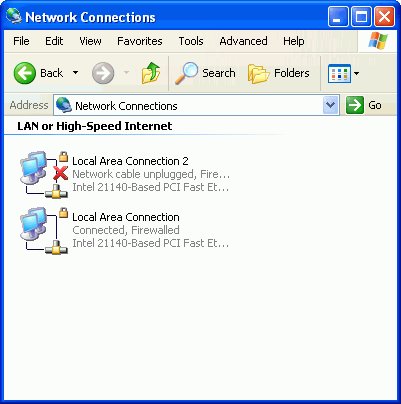
Cable unplugged even if it is plugged in - how to troubleshoot network cable
What's to do when your computer says "A network cable is unplugged" or "Cable unplugged" on a wired network connection?
Usually this happens when there's a problem with the network cable, modem, router or switch. It could very well be a network card malfunction. So here are some tips for troubleshooting this network issue.
First of all, if you have another network cable you should replace the cable you are currently using with the spare one. If the problem doesn't go away, then there could be a modem/router/switch malfunction. Try plugging the cable into different slots (if you have more than one lan slot on the device) or reset the network device or replace it. If the problem is still present, check the network card driver. Try to disable and enable the network card from Control Panel -> Device Manager (for Windows OS). Uninstall the driver and reinstall it or update the driver if necessary. If this doesn't solve your problem try connecting another computer to the network. If other computers work, it means that your network card is defective so you must replace it.
If you don't have a spare network cable, check if the cable is properly connected to the modem/router/switch and to your network card. If it is, unplug it and check the cable for faults. It could be interrupted or the wires could be cut near the connectors. If this is the case, replace the cable.
This happened to me the other day and I discovered that the network cable had the wires cut at one end, near the connector.
Usually this happens when there's a problem with the network cable, modem, router or switch. It could very well be a network card malfunction. So here are some tips for troubleshooting this network issue.
First of all, if you have another network cable you should replace the cable you are currently using with the spare one. If the problem doesn't go away, then there could be a modem/router/switch malfunction. Try plugging the cable into different slots (if you have more than one lan slot on the device) or reset the network device or replace it. If the problem is still present, check the network card driver. Try to disable and enable the network card from Control Panel -> Device Manager (for Windows OS). Uninstall the driver and reinstall it or update the driver if necessary. If this doesn't solve your problem try connecting another computer to the network. If other computers work, it means that your network card is defective so you must replace it.
If you don't have a spare network cable, check if the cable is properly connected to the modem/router/switch and to your network card. If it is, unplug it and check the cable for faults. It could be interrupted or the wires could be cut near the connectors. If this is the case, replace the cable.
This happened to me the other day and I discovered that the network cable had the wires cut at one end, near the connector.
22 martie, 2013
How to take screen snapshots in Opensuse with KDE
Taking snapshots of the desktop or of individual windows is useful in many situations. Doing this in Opensuse 12.3 with KDE is very simple. These are the steps:
- open Menu
- go to Applications
- select Utilities
- select Desktop
- click on Screen capture program (Ksnapshot)
After Ksnapshot opens, you will notice that Capture mode has several options. Choose the one you need, adjust other options as needed and click on Take a new snapshot button to capture your screen. Then click Save as.., choose the desired format and location and save your capture. Simple as that!
- open Menu
- go to Applications
- select Utilities
- select Desktop
- click on Screen capture program (Ksnapshot)
After Ksnapshot opens, you will notice that Capture mode has several options. Choose the one you need, adjust other options as needed and click on Take a new snapshot button to capture your screen. Then click Save as.., choose the desired format and location and save your capture. Simple as that!
Abonați-vă la:
Postări (Atom)